November 2025
November 17, 2025
Find inspiration in the Chat Library
Not sure where to begin? We’ve added a new Chat Library full of prompts to help you discover all that Littlebird can do. You can now browse a curated list of conversation starters, from summarizing your day to drafting an email, and kickstart your workflow with a single click.

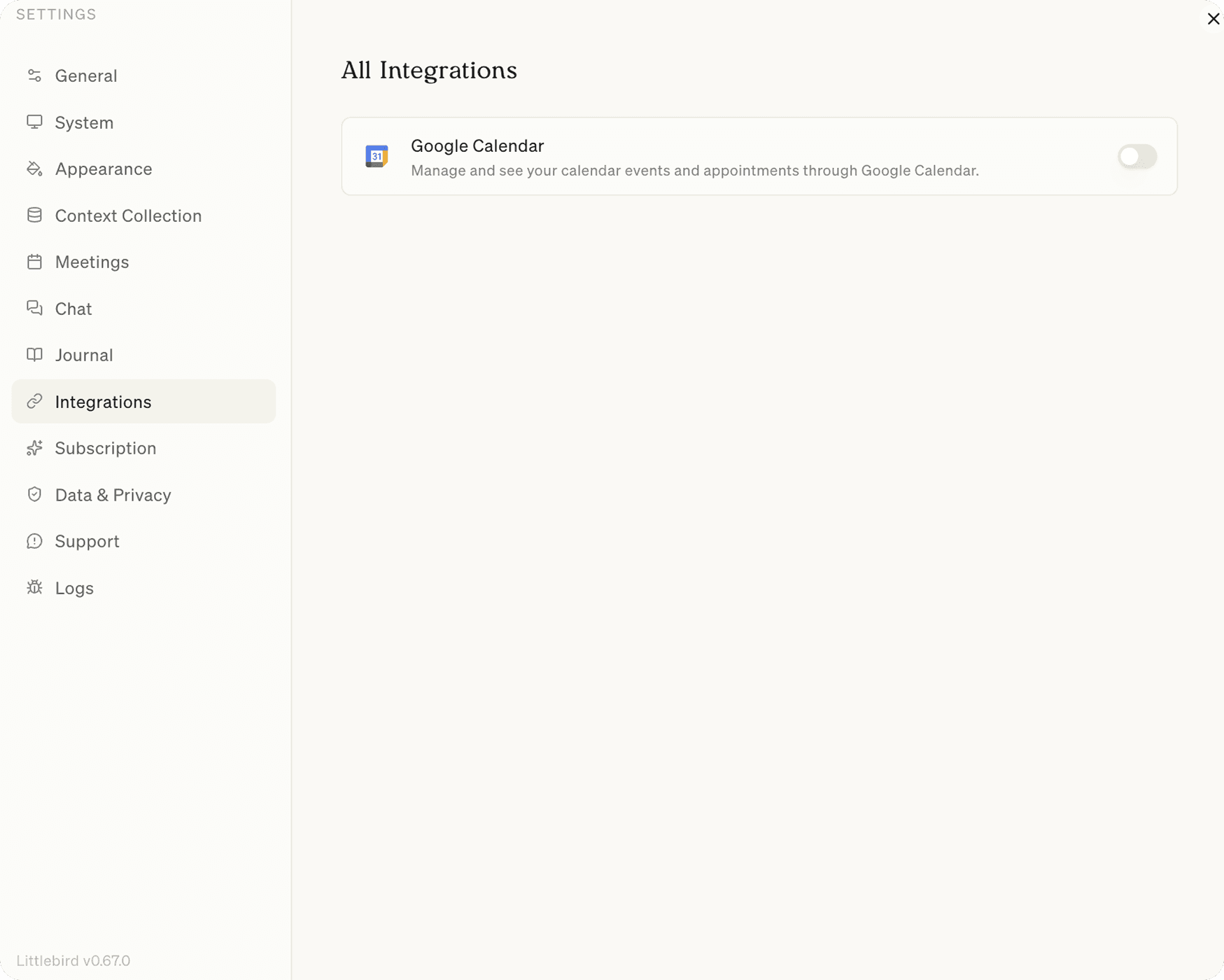
Introducing integrations, starting with Google Calendar
We're excited to announce that you can now connect your favorite apps to Littlebird, starting with Google Calendar (and more on the way!).
Your schedule just got a whole lot smarter. Here are a few things you can do when you connect your calendar:
- Check your schedule: Ask things like, "What meetings do I have today?"
- Prepare for what's next: Get ready for your next event by asking, "Help me prep for my next call"
- Create new events: Quickly schedule events with requests like, "Schedule a 'project sync' tomorrow at 10 am with name@example.com"
- Find and manage events: Easily find or cancel appointments by saying, "Cancel tomorrow's 1:1 with Sarah"
To support this, we've launched a new settings hub, so you can easily manage your connected apps from one central place. You can connect your Google Calendar by visiting Settings > Integrations, or by tapping the Chat controls icon in a Chat in the Littlebird mobile app.
Fixes and improvements
- Your Notion pages are now parsed more effectively, ensuring the context Littlebird captures is cleaner and more useful
- It's now easier to exclude specific apps from context collection with a more intuitive design
- If a chat response fails to generate in the mobile app, you’ll now see a Regenerate button, so you can easily try again







.svg)